How to Create a Photo Report Online

Creating a photo report online allows you to quickly prepare a document without installing additional software. You can upload photos, format the structure, and generate the report directly in your browser.
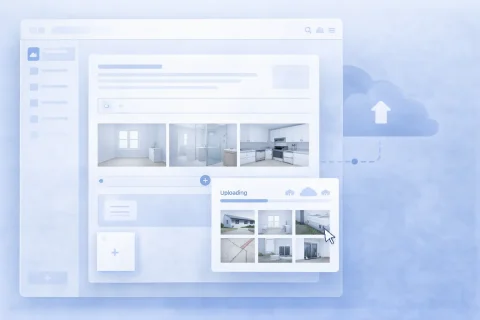

How to Create a Photo Report Online

Advantages of Creating Reports Online

An online service lets you:

  • work from any device
  • generate reports quickly
  • store data in the system
  • integrate reports with the mobile app
This makes creating photo reports convenient and accessible.

Try the service

If you're not logged in and just want to test the steps from the guide:
If you want to create full-featured photo reports in the dashboard — top up your balance in your user profile.

How to Create a Photo Report Online Without Installing Software

Creating a photo report online eliminates the need to install software or work with complex editors. The entire process happens right in your browser—from uploading photos to generating the final document. The online format is especially useful when:

  • you need to quickly create a photo report and send it to a client
  • you work across different devices
  • you need access to reports from anywhere
Unlike traditional software, an online service requires no updates or setup—just open the page and start working.

Online Service or Software: What to Choose

When choosing how to create a photo report, it is important to understand the difference between an online service and traditional software.

Online Service

  • no installation required
  • works in the browser
  • accessible from any device
  • ideal for quick turnaround

Desktop Software (Word, Excel, etc.)

  • requires manual formatting
  • takes more time
  • more difficult when working with large numbers of photos
If you need a deeper understanding of report structure and logic, we recommend reading the dedicated guide: 👉 How to Create a Photo Report

Comparison: Online Photo Report vs. Manual Compilation

When creating a photo report, it is important to choose the right method. Below is a comparison between an online service and manual report compilation (e.g., in Word or other editors).
Aspect Online Photo Report Manual (Word & similar)
Speed of creation High — automated report assembly Low — requires manual work
Installation None — works in browser Requires installed software
Working with photos Upload, sorting, and structure are automated Manual insertion, alignment, and formatting
Report structure Generated automatically Created manually
Mobile use Fully supported Limited or inconvenient
Errors Minimal due to automation Higher chance of mistakes
Scalability Easy to handle large numbers of photos Difficult with large volumes
Collaboration Supported (team, permissions) Virtually absent
Report preparation Final document generated automatically Requires manual assembly and review
If you need to quickly create a photo report online without installing software, use the online service. For a more detailed understanding of report structure, see the guide: How to Create a Photo Report.

Step by Step: How to Create a Photo Report Online

2. Upload photos to the report

Add the images that will be used in the photo report. You can: The online service automatically prepares the images for further work.

3. Organize the structure of the photo report

After uploading, it is important to arrange the photos in the correct order. To do this, you can:
  • sort the images
  • group them by stages or objects
  • create a logical sequence of work
A well-structured photo report is far easier to understand than a random set of images.

4. Add captions to photos

To make the photo report clear, add comments to the images. Captions allow you to:
  • explain what is shown
  • record the condition of an object
  • note details or observations
This is especially important for inspections, construction, and client reporting.

5. Configure the report layout

Before generating the document, you can choose the display format:
  • number of photos per page
  • image placement
  • final file format
This allows you to adapt the photo report to your specific task.

6. Generate the final photo report

Once you have made your adjustments, simply create the final document. As a result, you receive:
  • a ready-made report with photos
  • a structured file
  • a document you can send or save

How to Create a Photo Report from Your Phone

Creating a photo report online is especially convenient from a mobile device. You can:

  • take photos directly on site
  • add them to the report immediately
  • build the structure without transferring files
This allows you to:
  • speed up the process
  • avoid data loss
  • prepare the report right after shooting
The mobile scenario is particularly popular in:
  • construction
  • inspections
  • logistics

When to Use the Online Format

Creating a photo report online is suitable when:

  • you need to prepare a document quickly
  • you have no time for manual formatting
  • you need access from multiple devices
  • you work in the field
The online tool helps standardize the process and reduces report preparation time.

Common Mistakes When Creating a Photo Report Online

Even when using an online service, mistakes can happen:

  • uploading photos without structure
  • no captions
  • incorrect image order
  • overcrowded pages
  • lack of logical flow in the report
To create a quality photo report:
  • structure the images
  • add comments
  • check the order before generating the document

How to Create a Photo Report Online Faster

To speed up the process:

  • upload photos immediately after taking them
  • use the mobile app
  • add captions as you go
  • sort images right away
This can cut report preparation time by several times.

Online Photo Reports for Business and Professionals

Online photo report creation is widely used in professional settings:

  • construction and work supervision
  • technical inspections
  • logistics and delivery
  • insurance claims
Such reports are used as:
  • working documentation
  • client reports
  • proof of completed work

Where It Is Used

This guide can be applied, for example, in the following fields:

Functions Used

This guide uses the following functions:

FAQ — How to Create a Photo Report Online

Yes, a guest mode with basic features is available without registration.
No, the entire process is done in the browser.
Yes, you can use a mobile device or the app.
The final document is generated automatically and is ready to send or archive.