
How to Edit Photos in a Photo Report

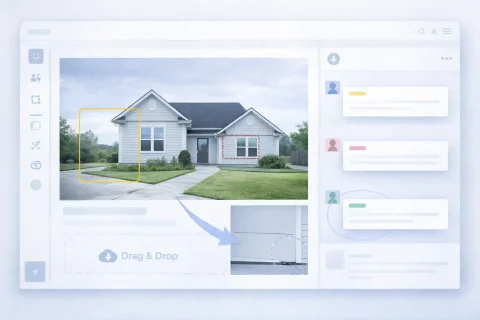
Editing photos allows you to prepare images before including them in the final document. This is important for improving readability and adding explanations. You can make changes directly in the system without using external tools, speeding up photo report preparation.

How to Edit Photos in a Photo Report

Editing Options

When working with photos, the following actions are available:

  • rotate and adjust images
  • add captions
  • add comments and explanations
This makes the report clearer and more informative.

Try the service

If you're not logged in and just want to test the steps from the guide:
If you want to create full-featured photo reports in the dashboard — top up your balance in your user profile.

Why Edit Photos in a Photo Report

Editing images is not just visual polishing — it’s a way to improve the quality of your documentation. Key objectives:

  • highlight important details in a photo
  • explain defects, damage, and features
  • improve report clarity for the client
  • reduce the number of follow‑up questions
  • prepare photos for sharing with third parties
Unlike ordinary images, photos in a report must carry meaning and be part of the document’s structure.

How Editing Connects to the Report Structure

Photo editing is closely tied to the overall logic of the document. After editing, images:

  • are easier to group into sections
  • fit better into the layout
  • display correctly in photo tables
Together with the sorting feature (see the photo sorting guide), this helps you build a clear report structure.

Practical Use Case

Example workflow

  1. Upload photos to the system
  2. Quick adjustments (rotate, straighten)
  3. Add captions
  4. Add comments and explanations
  5. Highlight key elements in the photo
  6. Place them in the report structure
This approach lets you:
  • reduce document preparation time
  • avoid mistakes
  • improve report quality

What Changes You Can Make to Photos

Basic image adjustments

Helps bring photos to a consistent look:
  • rotate and straighten
  • fix orientation (portrait / landscape)
  • prepare photos for correct display in the layout
This is especially important when working with mobile photos.

Adding captions to photos

Captions are used for a short description of the image:
  • object or area name
  • brief defect description
  • work stage indication
Captions help readers quickly navigate the report without examining each image in detail.

Comments and explanations

Comments allow you to add more detailed information:
  • description of the issue or condition
  • cause of the defect
  • recommendations for correction
  • additional notes for the client
This turns a set of photos into a complete report.

Annotations on images

Visual callouts increase informativeness:
  • highlight problem areas
  • point out areas of interest
  • visual markers on the photo
Annotations are especially important for:
  • inspections
  • construction sites
  • insurance claims

When Editing Is Especially Important

Photo editing is critical in the following scenarios:

In these cases, photos are the primary evidence, and without proper formatting they can lose their evidentiary value.

Common Editing Mistakes

To avoid lowering report quality, keep the following in mind:

  • missing image captions
  • excessive or uninformative comments
  • mismatch between photo and description
  • lack of visual callouts
  • using unedited images
Correcting these mistakes significantly increases the value of the document.

Quick Flow

Functions Used

This guide uses the following functions:

Where It Is Used

This guide can be applied, for example, in the following fields:

Frequently Asked Questions (FAQ)

It’s not mandatory, but it is recommended. Editing improves image clarity, highlights important details, and makes the report easier to understand for clients or reviewers.
Yes, all basic editing actions are available inside the service. This lets you avoid external editors and speeds up photo report preparation.
Captions are short descriptions of the image (e.g., area name or defect type). Comments are more detailed explanations that may include the nature of the problem, its causes, or recommendations.
Yes, that’s what annotations are for. They let you visually highlight specific areas and point out important details on the photo.
Yes, you can edit photos at any stage of your work. All changes are automatically applied to the photo report structure.
Yes, edited images fit better into the layout and document structure. This makes sorting easier and improves the logical flow of the report.
No, in most cases the built‑in tools are sufficient for preparing images and formatting the photo report.