Photo Captions in a Photo Report

Photo captions help structure the photo report and make the photo documentation understandable for analysis and client delivery. The function combines numbering and photo description, forming a single caption text for each image. Used in preparing photo reports, photo tables, and inspection documentation in construction, expert assessment, and field work.


Photo Captions in a Photo Report

Where to Add Photo Captions

The service provides two ways to add or edit a description for a specific photo:
Captions under each photo

Under each image in the photo report, two fields are available:
  • Photo number
  • Photo description
This method is convenient when working with individual images directly in the page layout.

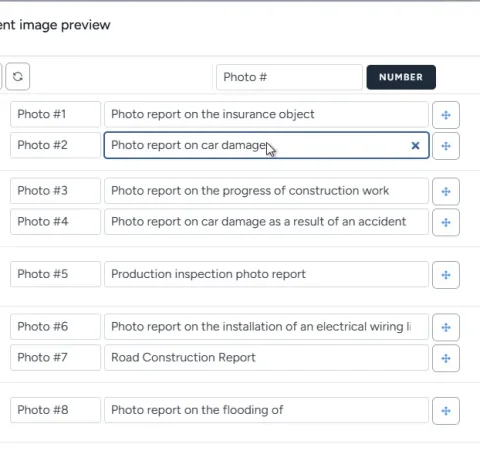
Captions in the photo list

Image 1
On each photo report page, a photo list is available (opens via a button). In this list:
  • all images of the current report are shown;
  • number and description fields are available for each photo;
  • you can quickly edit captions for multiple images.
This mode is optimal for batch captioning of photos.

Use features in the service

If you're not logged in and just want to give it a try:
If you want to create full-featured photo reports in the dashboard — top up your balance in your user profile.

Photo Numbering

Automatic numbering with prefix

The number field can be filled automatically:
  • set a prefix (e.g., "Photo");
  • the prefix can be set:
    • on the first page of the photo report;
    • or in the advanced report settings;
  • click the button next to the prefix — the system automatically numbers all photos.
As a result, each photo gets a sequential number with the specified prefix.

Why this is important

Automatic numbering:
  • ensures a uniform photo report format;
  • reduces the chance of errors with manual entry;
  • speeds up photo documentation preparation when many images are involved.

Forming the Final Caption

The final photo caption is formed automatically from two parts:

  • photo number;
  • description text.
Caption format: Number + period + space + description Example: Photo #1. General view This ensures uniformity of all captions in the photo report and makes the document easier to understand.

Standard Photo Descriptions

Adding description templates

In the table layout of the photo report, next to the description field there is a function to:
  • add text to the list of standard descriptions.
This lets you save frequently used phrases (e.g., "General view", "Coating defect", "Fastening point").

Reuse

Standard descriptions:
  • are available across all user photo reports;
  • allow quick caption filling without retyping;
  • can be edited and deleted on the profile page.

Why this is important

Using templates:
  • speeds up the image annotation process;
  • ensures a consistent photo description style;
  • reduces human error when preparing reports.

Fast Caption Filling

Keyboard navigation

In the photo list, navigation using the Tab key is supported:
  • the cursor moves sequentially between fields;
  • you can quickly enter numbers and descriptions for many images.

Practical application

This function is especially useful when you need to:
  • caption a large volume of photos;
  • prepare a photo report under tight deadlines;
  • ensure consistent captions in a photo table.

The Role of Captions in a Photo Report

Proper photo captions are a key element of quality photo documentation. They allow you to:

  • unambiguously identify the image;
  • convey context (location, work stage, defect);
  • increase the report's value for the client;
  • simplify later analysis and data verification.
Well-designed captions turn a photo report from a mere collection of images into a fully functional working document.

Related Guides

This feature is used in various tasks requiring photo documentation and report preparation.

Where It Is Used

This feature can be used to create photo reports in various fields, for example: