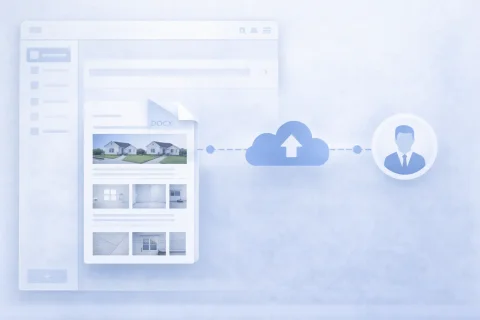

How to Send a Photo Report

After creating a photo report, you need to deliver it to the client or colleagues. This can be done right after generating the document. Delivering the report is an important step that completes the photo documentation process.

How to Send a Photo Report

Ways to Send a Photo Report

You can share the document in several ways:

  • send by email
  • download the file and share manually
  • use the report in team workflows
  • provide access to the capture context
This allows you to quickly share results.

Try the service

If you're not logged in and just want to test the steps from the guide:
If you want to create full-featured photo reports in the dashboard — top up your balance in your user profile.

Functions Used

This guide uses the following functions:

Where It Is Used

How to Send a Photo Report to a Client or Colleagues

Sending a photo report is the final step in working with photo documentation. Depending on the task and the form of interaction with the client, different methods of delivering the document can be used. Before sending, it is recommended to:

This is especially important when working with client reports that require a formal presentation of information.

Sending a Photo Report by Email

When to use

Sending by email is the most common way to deliver a photo report. Suitable for:
  • communicating with clients;
  • transferring reports between departments;
  • sending final documentation after work completion.

How to send

  1. Generate the photo report via the export function
  2. Download the file to your device
  3. Attach the document to the email
  4. Add a brief description (what was done, what to pay attention to)

Recommendations

  • use PDF for the final version of the report;
  • add a subject line indicating the site or project;
  • send multiple versions if necessary (e.g., a short and a full version).

Downloading and Manually Delivering the File

When this is necessary

This method is used if:
  • the report is delivered in person;
  • upload to an external system (CRM, ERP, cloud) is required;
  • the file needs to be stored in the corporate database.

Supported formats

Depending on the scenario, you can use:
  • PDF — for viewing and sending;
  • DOCX — for editing;
  • archives — when working with large volumes of data.

Team Collaboration and Internal Transfer

Use in workflows

Within a team, photo reports can be used as part of processes:
  • technical surveys;
  • construction supervision;
  • maintenance;
  • audits and inspections.
In this case, the report:
  • is shared among project participants;
  • is used as a data source;
  • is supplemented with new photos and comments.

Advantages

  • no need to manually forward files;
  • a single version of the document is maintained;
  • interaction between employees is accelerated.

Shooting Context Along with the Photo Report

In addition to the document itself, it is important to provide additional information:

  • link to the site;
  • structure of zones or rooms;
  • description of defects;
  • sequence of work performed.
This makes the photo report not just a set of images, but a fully functional work tool.

How to Choose a Method for Sending a Photo Report

The choice depends on the task:

  • for the client → PDF + email
  • for editing → DOCX
  • for the team → internal transfer within the service
  • for storage → upload to the system or archive
This approach allows you to adapt the report format to the specific usage scenario.

Common Mistakes When Sending a Photo Report

What to check before sending

  • disrupted photo order;
  • missing captions or comments;
  • inappropriate file format;
  • document size too large;
  • no description in the email.

How to avoid problems

  • use structured layouts;
  • check the report before export;
  • optimize the number of images;
  • add explanations to photos.

Fast Scenario: Send a Photo Report in 1 Minute

Frequently Asked Questions (FAQ)

For most tasks, PDF is optimal — it preserves the structure and displays correctly on all devices.
Yes, if you use the DOCX format or make changes in the service and send an updated version.
Use a suitable format for storing the photo report - a zip archive with images in webp format and report details in a table.
Yes, when working within a team, the report can be used directly in the system.
Change the order of photos and the layout before exporting.