Photo Annotations in a Photo Report

Photo annotations in a photo report allow you to add graphical and textual callouts directly onto the image. This makes photo documentation clearer, more visual, and easier to analyze, share with clients, and use as evidence. This feature is used when preparing photo reports, photo tables, and inspection documentation in construction, insurance, technical assessments, and field work.
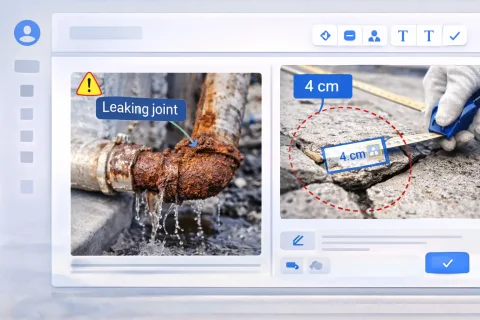

Photo Annotations in a Photo Report

What Are Photo Annotations

Photo annotations are visual elements and notes added on top of an image. Unlike captions below the photo, annotations:

  • are placed directly on the image;
  • point to specific areas and details;
  • visually highlight important information.
This allows you to immediately show exactly what needs attention when reviewing a photo report.

Use features in the service

If you're not logged in and just want to give it a try:
If you want to create full-featured photo reports in the dashboard — top up your balance in your user profile.

Where to Add Photo Annotations

Annotations are made in the built‑in image editor. To add an annotation:

  • click on a photo in the photo report workspace;
  • the built‑in editor will open;
  • choose an annotation tool;
  • add graphical or textual elements to the image;
  • press the Done button in the top‑right corner.
All changes are immediately reflected in the report structure and are included when exporting.

Practical Uses of Annotations

Annotations help solve practical tasks in photo reports.

Highlighting defects and issues

  • pointing out cracks, damage, and deviations;
  • documenting problem areas;
  • visually confirming defects.

Explaining the photo context

  • clarifying what is shown in the photo;
  • indicating a zone or element of the object;
  • adding comments to specific areas.

Creating before/after reports

  • highlighting changes;
  • comparing object condition;
  • visualizing work results.

Working with Explanatory Graphics

Working with Explanatory Graphics

One of the editor's key capabilities is adding explanatory elements directly to the image.

Adding graphical elements

The following tools are available:
  • arrows;
  • lines;
  • shapes;
  • area highlights.
These elements are used to point out important details in the image.

Text annotations

The editor allows you to:
  • add text to the image;
  • place labels next to objects;
  • add explanations directly on the photo.

Benefits of Using Annotations

Using annotations in a photo report allows you to:

  • increase the informativeness of images;
  • reduce the need for additional explanations;
  • speed up client approvals;
  • make the report more professional and structured.
Annotated images are understood faster and require fewer extra comments.

Relation to Other Features

Photo annotations are used together with other photo report preparation tools:

Using these features together helps create complete photo documentation.

When to Use Photo Annotations

Annotations are recommended when:

The Role of Annotations in a Photo Report

Photo annotations are a key element of visual communication in a photo report. They allow you to:

  • accurately convey the meaning of an image;
  • reduce the chance of interpretation errors;
  • strengthen the evidentiary value of the document;
  • improve the quality of photo documentation.
Annotations turn photos from simple illustrations into a working tool for analysis and decision‑making.

Related Guides

Quick Start Scenario

Add photos → Edit images → Add captions → Generate report

Annotation vs. Photo Captions – What’s the Difference

Annotations and photo captions serve different purposes in a photo report and are used together to increase the document’s informativeness.

Key differences

Aspect Photo Annotations Photo Captions
Placement Directly on the image Below the photo
Data type Graphics and text on the photo Text description
Main purpose Show where to look Explain what is shown
Examples Arrows, highlights, text on the image “Photo #1. General view”
Context Local (specific area) General (whole photo)

When to use annotations

Annotations are used when you need to:
  • point to a specific defect or element;
  • visually highlight an important area;
  • reduce the risk of misinterpreting an image;
  • prepare an evidence base for a report.

When to use photo captions

Captions are used when you need to:
  • describe the content of the photo;
  • indicate context (area, work stage);
  • assign numbering to images;
  • maintain a consistent report style.

How to use them together

In practice, annotations and captions complement each other:
  • an annotation shows where the issue is located;
  • a caption explains what is happening in the photo.
This approach makes the photo report as clear and easy to analyze as possible, especially in B2B scenarios (construction, inspections, expert assessments).

Frequently Asked Questions

Photo annotations are graphical and textual elements added directly onto the image. They let you highlight important areas, point out defects, and explain the content of the photo right on the picture.
Annotations are placed on the image itself (arrows, highlights, text), while captions appear below the photo in a separate field. Annotations show where to look, captions provide a general description of the image.
In a photo report, you can use:
  • arrows;
  • lines;
  • geometric shapes;
  • area highlights;
  • text notes on the image.
This allows you to precisely indicate important details.
Annotations are used when it is important to:
  • highlight defects or damage;
  • show a specific zone or element;
  • explain complex or ambiguous images;
  • prepare a photo report for a client or an expert assessment.
Yes, all added annotations are saved and appear in the final document (e.g., when exporting to Word). This makes the photo report clearer and more informative.
Yes, annotations can be modified or removed in the image editor at any time. This allows you to update the photo report without having to re‑upload the images.